
Public records requests often come with tight deadlines and large volumes of data. You may need to collect records from multiple sources, identify what is responsive, remove duplicates, redact sensitive information, and produce the final set of documents in a clear, defensible manner.
GoldFynch can help you manage this workflow from collection through production. This guide walks through a practical way to use GoldFynch for a public records request. While every request is different, the steps below provide a framework for your process.
We have broken the process into the following sections:
A: Create and structure your GoldFynch case
B: Collect and upload your data
C: Deduplicate your data
D: Review Documents
E: Produce responsive documents
Before you begin
Before creating your case, it helps to define the scope of the request as clearly as possible. Identify the likely custodians, departments, date ranges, and data sources that may contain responsive records. If you need to collect broadly, make a note of why. Keeping a simple log of what was collected, where it was collected, and why can make the process easier to explain later.
As a best practice, create a new GoldFynch case for each public records request. This helps keep collections, review work, redactions, and productions separate and easier to manage.
A: Create and structure your GoldFynch case
The first step is to create a case for the request and set up a folder structure that will help you organize your records clearly.
Create a new case
1. Log in to your GoldFynch account or sign up if you do not already have one
2. Click the '+ Create New Case' button
3. Enter a name for the case, select the case type, select the time zone, and click 'Create case'
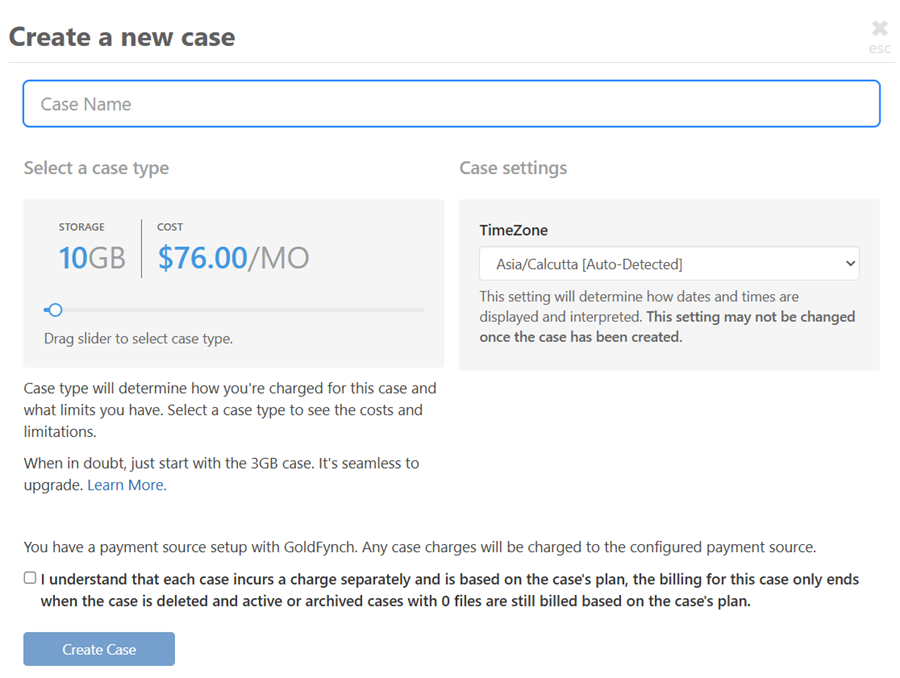
Suggested naming format
Request Name - YYYY - Requester - Topic
A clear naming convention makes it easier to distinguish one request from another
Note: Once you create the case, you can share the case with your team members, and your entire team can work on the public records request simultaneously, thereby avoiding duplication of effort.
Set up your folder structure
After creating the case, it is a good idea to build a folder structure before uploading data. This makes your collection easier to organize and review later.
A sample structure looks like this:
- 01_Request Documents - Store the original request, clarifications, internal notes, and correspondence with the requester
- 02_Collection - Store the records collected for review. You can create subfolders based on source or custodian, such as:
- Emails
- Shared Drives
- Customer_programs
- Contracts_Procurement
- Regulatory
To create folders in GoldFynch
1. Open the case you created
2. Go to the 'Files' view using the icon in the left navigation panel
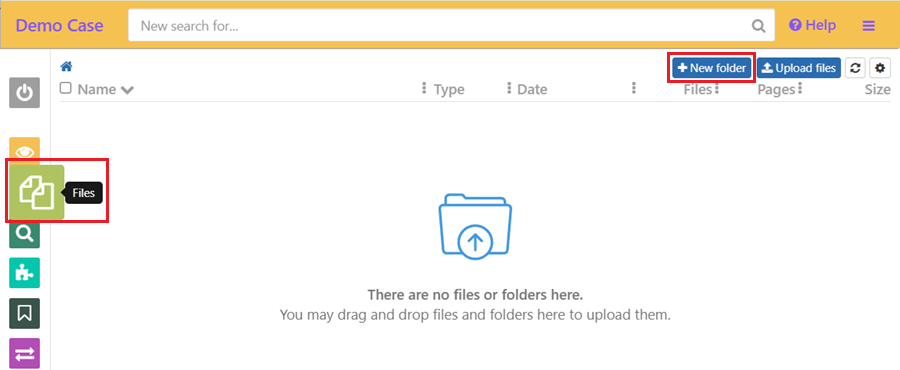
3. Click '+New folder'
4. Enter a folder name and click on the arrow to create a new folder
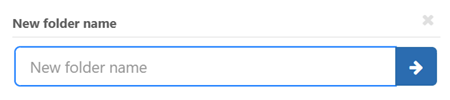
To create a subfolder, open the main folder first and then click +New Folder again
B: Collect and upload your data
Once your case is set up, the next step is to collect the records that may be responsive to the request and upload them to GoldFynch.
Collect data
Your goal during collection should be to gather records from the systems where they are actually stored, while keeping the collection as targeted as possible.
Some common examples include
- Emails: Export mailboxes by custodian and date range. If you need to export a much larger mailbox, note why.
- Shared drives and document repositories: Export folders relevant to the request, preserving folder structure and file paths when possible
- Vendor and contract systems: Download agreements, exhibits, statements of work, amendments, invoices, and related records.
- Board management tools: Export agendas, packets, minutes, recordings, and transcripts if available.
Collecting data by custodian or source can make the upload and review process much easier to manage
Upload data to GoldFynch
After collecting the data:
- Open the GoldFynch case for your public records request
- Go to the 'Files' view
- Open the folder you want to upload to. For example, if you are uploading email data, open the Emails folder
- Drag and drop the files into the folder in your browser
- Repeat for the rest of your collected data
Note:
Once uploaded, GoldFynch will automatically process the data and extract files from containers or compressed files where applicable.
You can continue uploading more data later if additional records are identified during the request.
It is best to upload data into the folders that match the source or custodian so the structure remains clear.
Learn more about uploading data to your case in GoldFynch
C. Deduplicate your data
After your data has been uploaded, the next step is to remove duplicate records. Deduplication reduces the number of files you need to review and helps avoid reviewing the same document or email multiple times.
To run deduplication in GoldFynch:
Go to the Dedupe view in your case.
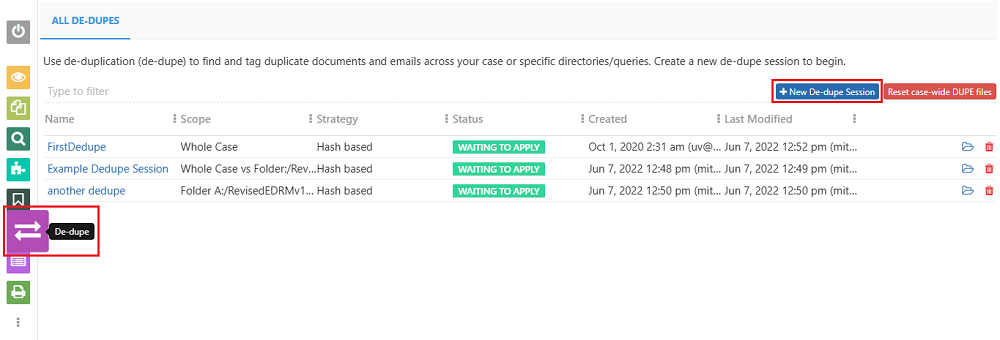
Click + New Dedupe Session and enter a name for the session.
Select the deduplication scope and strategy.
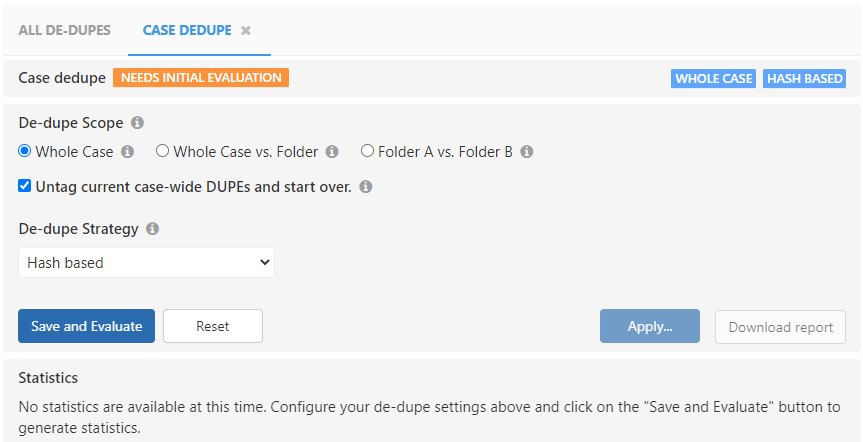
Click Save and Evaluate.
Review the results, then click Apply and confirm the session.
Notes on deduplication:
- The scope of a deduplication session can be:
- The entire case
- The whole case is compared against a specific folder
- Two specific folders
- GoldFynch offers Hash-based deduplication and Message-ID-based deduplication
- Hash-based deduplication is useful for exact file duplicates
- Message-ID-based deduplication is usually a better option for email collections
- Deduplication is often an iterative process. If you upload more data later, you may want to run another dedupe session
Running deduplication early can save significant review time, especially in requests involving email exports, shared drives, or overlapping departmental records
Learn more about deduplication in GoldFynch
D. Review documents
Once your records are in the case and duplicates have been removed, you can begin reviewing documents to identify what is responsive to the request.
In GoldFynch, this usually involves:
searching and filtering records
tagging documents based on review decisions
redacting confidential or exempt information where needed
Search and filter records
GoldFynch lets you search your case in two main ways: quick searches and advanced searches.
Quick searches from the search bar
If you want to quickly locate records by metadata, email fields, file type, filename, or date, you can use the search bar at the top of the case.
For example, to find emails sent to a specific address:
Type
to:<email_address>into the search bar.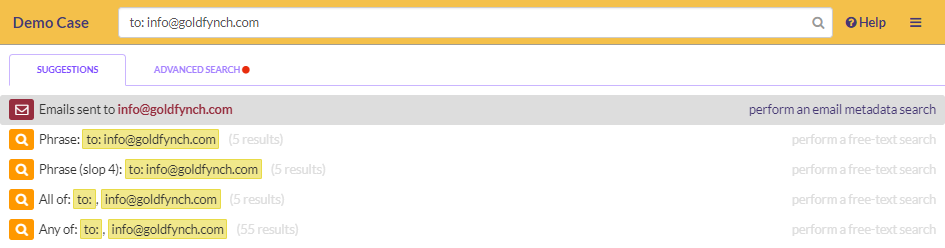
Select the suggested search option for emails sent to that address.
Quick searches are useful when you already know the type of record you are looking for.
Build advanced searches
If you need to find records that meet several conditions at once, the Advanced Search view is usually the better option.
For example, you may want to search for files that:
contain a particular phrase
come from a certain folder or source
fall within a specific date range
To build an advanced search:
Go to the Advanced Search view using the icon in the left panel.
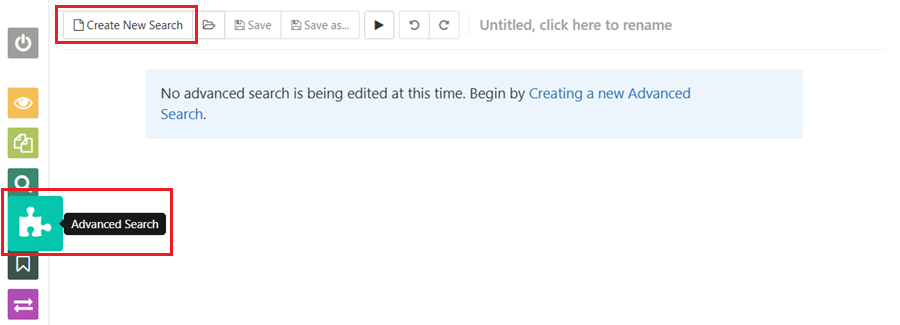
Click Create New Search.
Select the first search parameter, operator, and value.
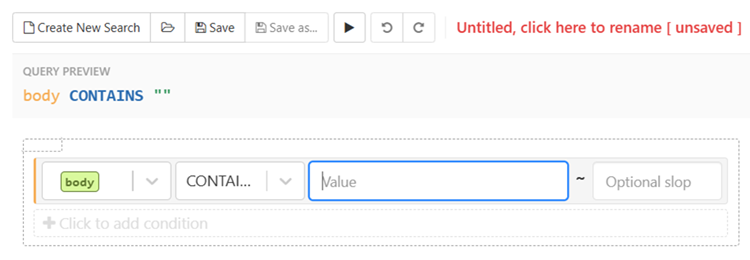
Add another condition and define the next parameter.
Repeat until all conditions are included.
Click Run to execute the search.
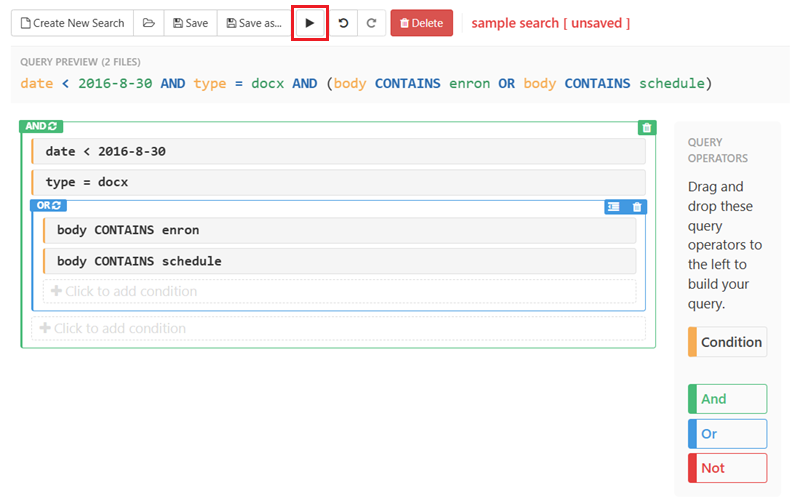
You can also save searches so that you or your team can return to them later during review.
Learn more about using GoldFynch's search features
Tag documents
Tagging helps you organize records based on their review status. For a public records request, tags can help distinguish between records that are responsive, non-responsive, need redaction, or are ready for production.
Example tags might include:
Responsive
Non-Responsive
Needs Redaction
Exempt
Ready for Production
Attorney-Client/Work-Product
Personnel
To tag records returned by a search:
Run your search.
On the search results page, click the checkbox at the top to select all returned files.
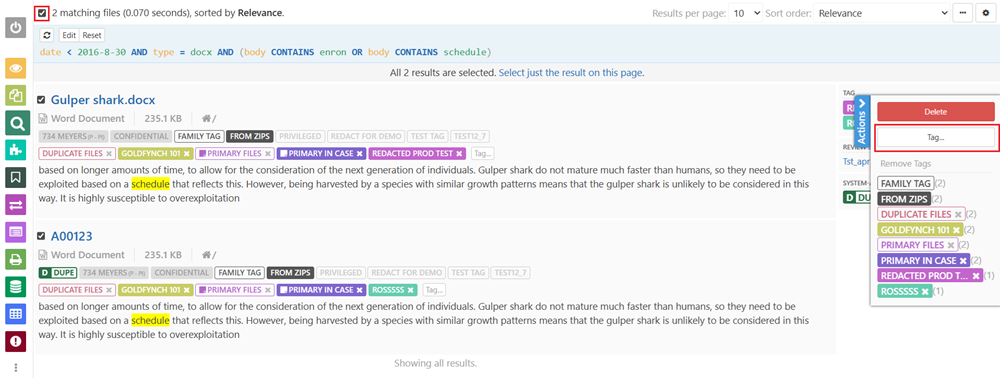
Click the Tag button in the menu on the right.
Enter the tag name you want to apply and click Apply.
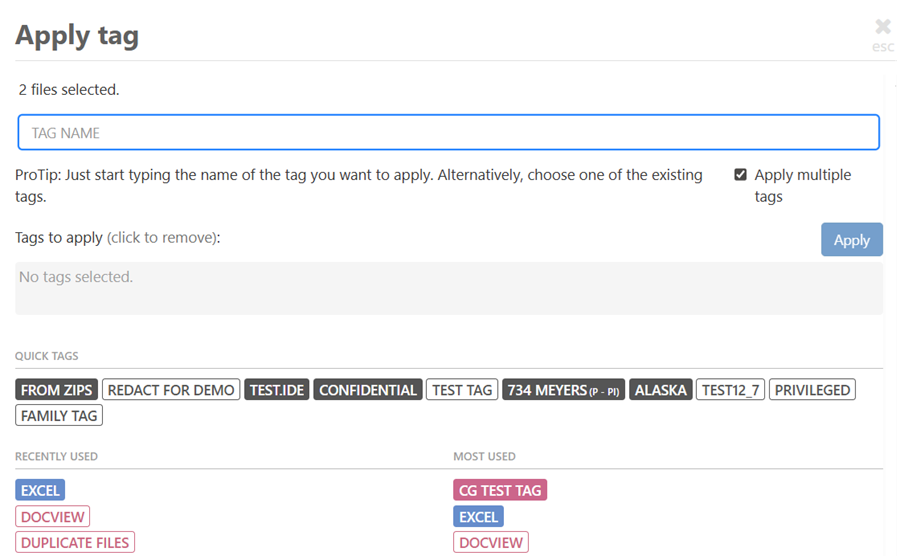
Choose how the tag should be applied to file families, then confirm.
The tag will then be applied to the selected records.
Learn more about tagging files in GoldFynch
Note: You can also use tags and saved searches to create batch reviews so your team can work together on identifying responsive documents
Redact sensitive or exempted information
As you identify records that need to be produced, you may also need to redact confidential, exempt, or sensitive information before release. This could include personally identifiable information, account numbers, protected personal details, or other material that should not be disclosed.
To apply a redaction in GoldFynch:
Open the document in the new document viewer.
Click the draw icon on the document viewer toolbar
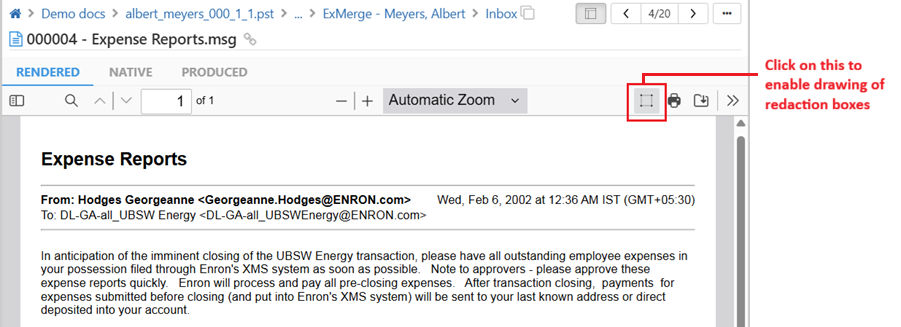
Draw the redaction box over the text you want to redact.
Click on the redaction box and add a redaction stamp
Deselect the draw icon when finished.
To redact entire pages:
In the right action panel, click Add Page Range.
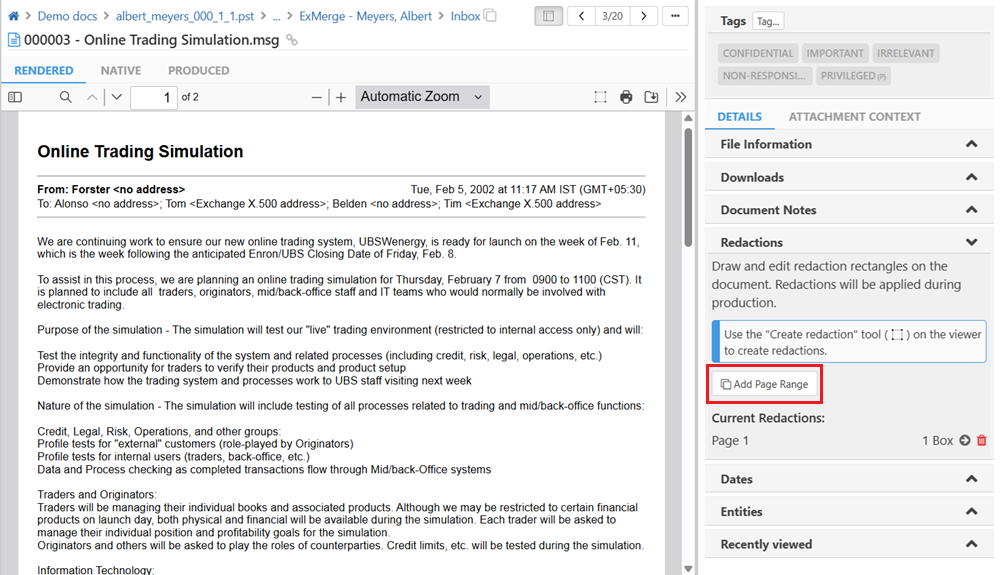
Enter the page numbers you want to redact.
Press Enter.
Best practice:
After applying redactions, review the document again to confirm that the correct information has been redacted and that no sensitive content remains visible.
E. Produce responsive documents
Once your review is complete, you can use GoldFynch’s Production Wizard to generate the final set of responsive documents.
To start a production:
Go to the Production view using the icon in the left panel.
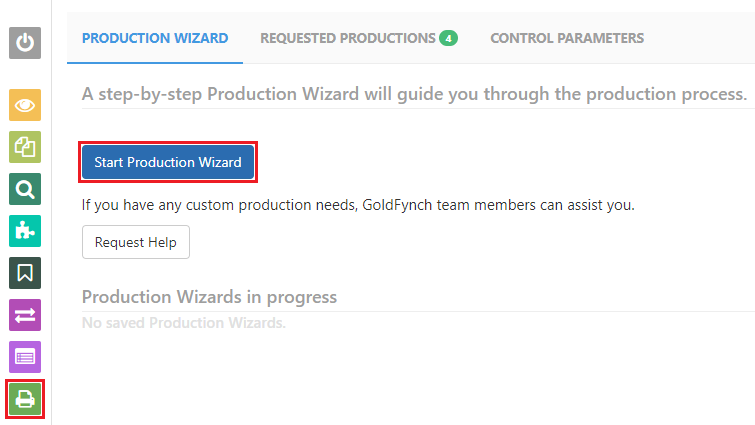
Click Start Production Wizard.
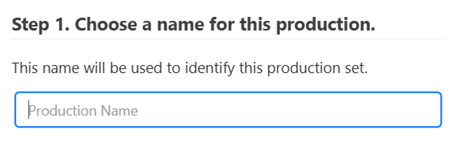
Enter a name for the production.
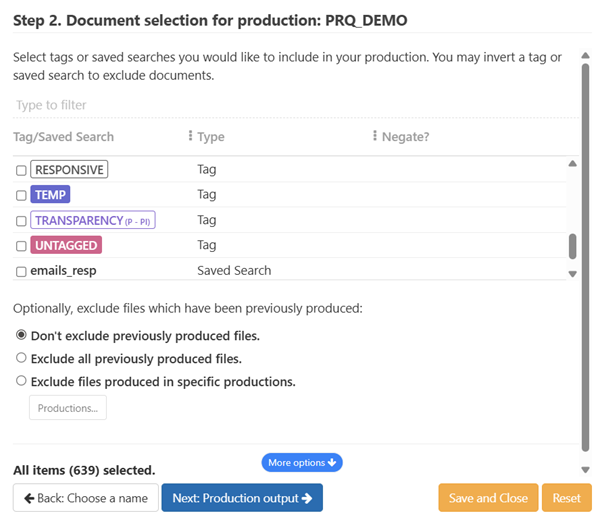
Select the files to include by choosing tags, saved searches, or a combination of both.
Select the output format you need.
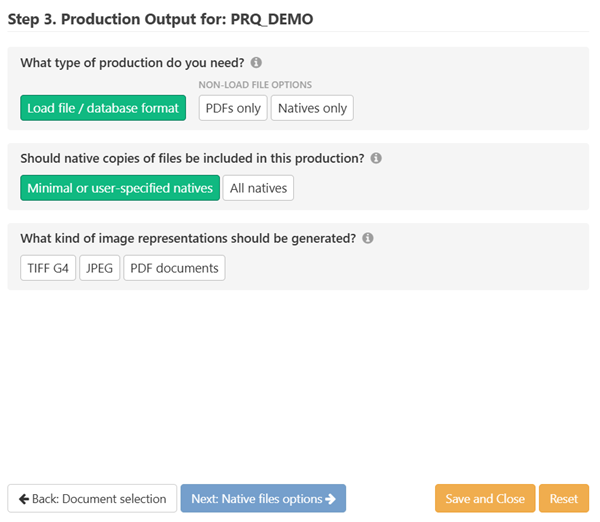
Complete the remaining steps in the Production Wizard.
Using tags and saved searches to define the production set can help ensure that only the correct records are included.
Validate your production
Before you proceed with the final step of the Production Wizard (Step 10), where the production is processed, it is worth doing one final check to make sure:
The responsive set is complete
Non-responsive records are excluded
The correct tags have been applied
All required redactions are in place
This step can help reduce mistakes and make the final production more defensible.