
Adding redaction stamps to redactions in a file helps others easily understand why the redaction was applied and supports the review and production process.
GoldFynch has both "managed" redaction stamps that are created in advance, and one-off stamps that are created on the fly.
Please note that you can add redaction stamps only when using the "New" version of the document viewer
Adding a managed redaction stamp
Step 1. Open the document you are reviewing in the "New document viewer" layout
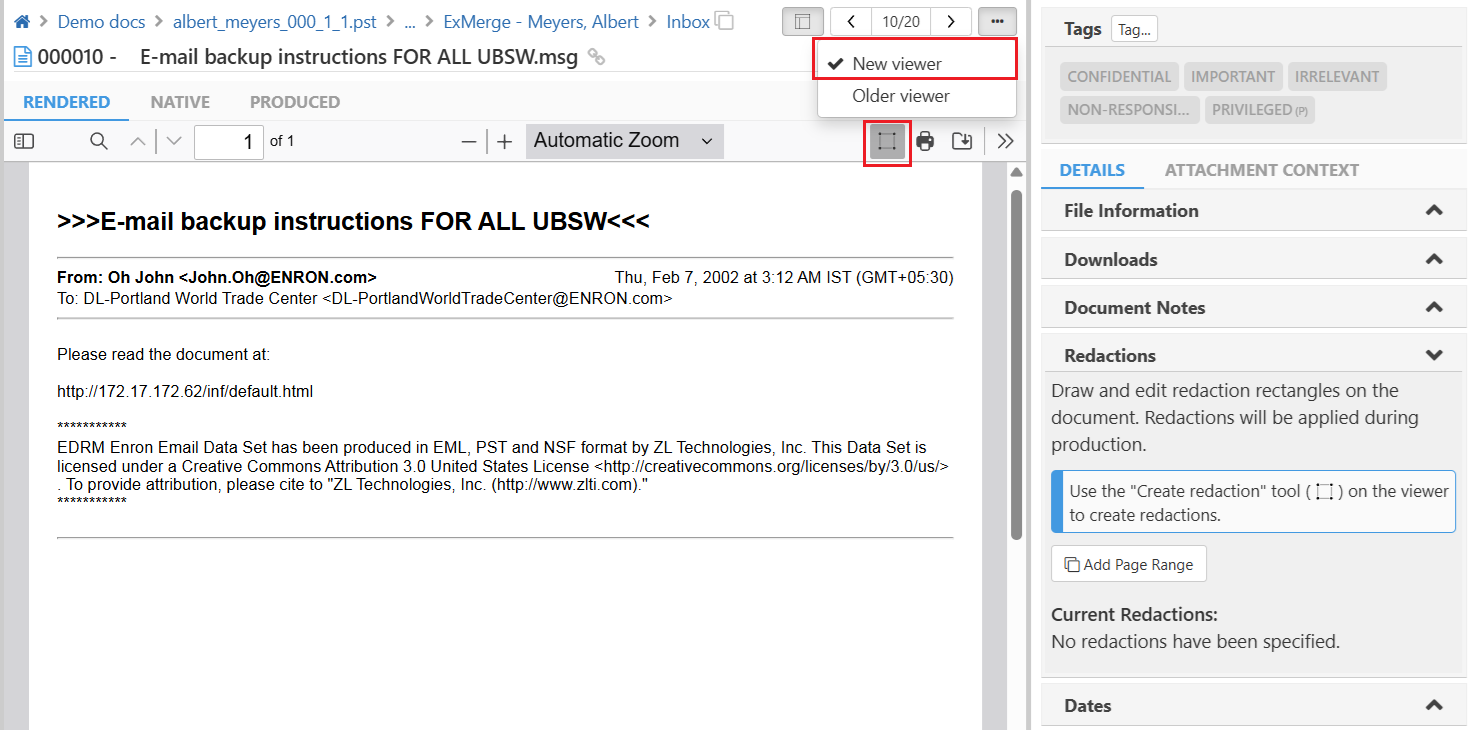
Step 2. Click on the 'Draw' redaction icon in the document viewer toolbar to add redactions
Step 3. Draw the redaction box over the text you want to redact
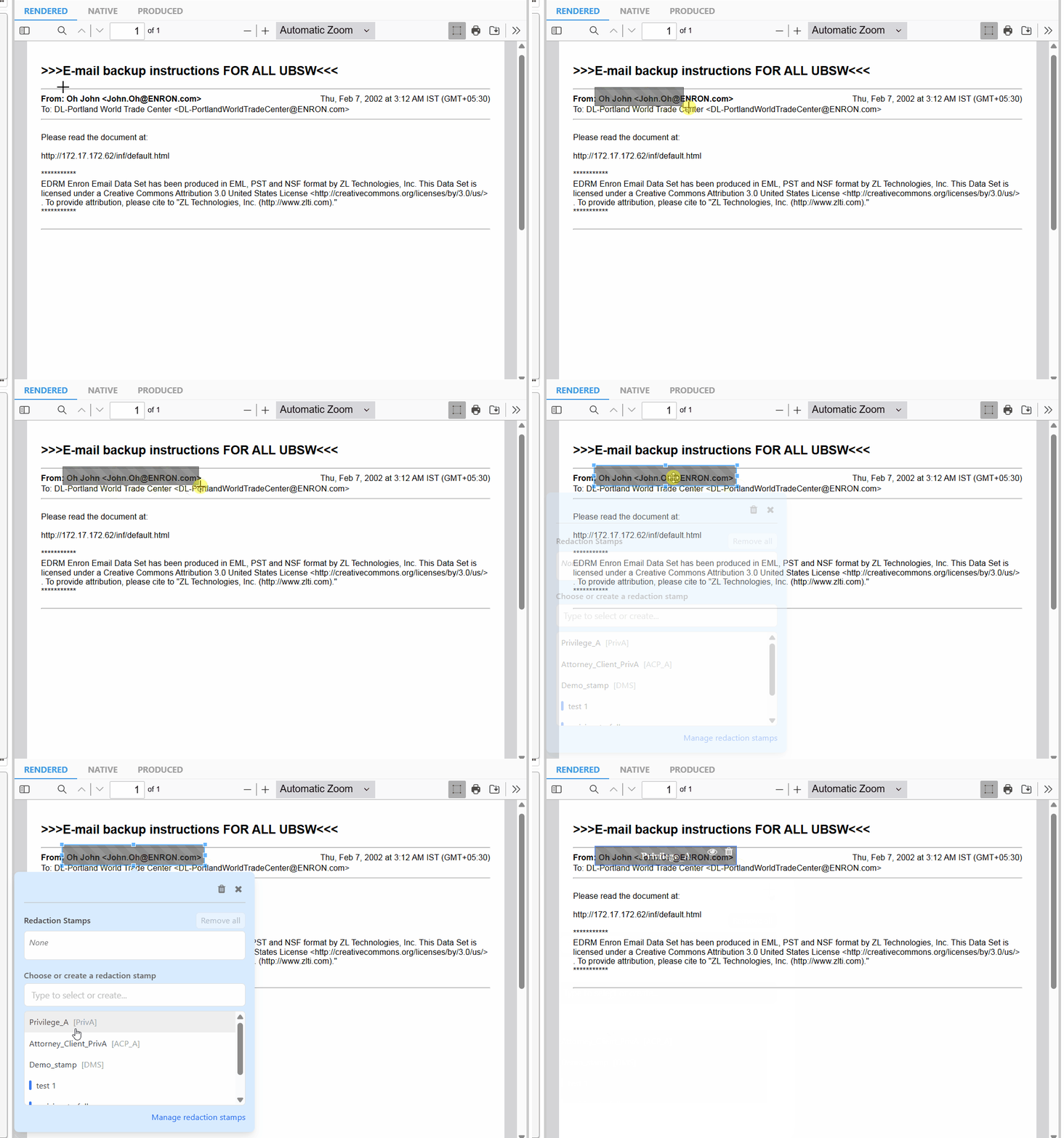
Step 4. Click on the redaction box to view the "Redaction Stamp" pop-up box
Step 5. Select one or more of the managed redaction stamps from the ones listed in the box
Step 6. Close the redaction stamp pop-up box by clicking on the 'x' in the top-right corner. This will save the redaction stamp to the redaction.
Note:
- A managed redaction stamp will have its abbreviation also listed against it
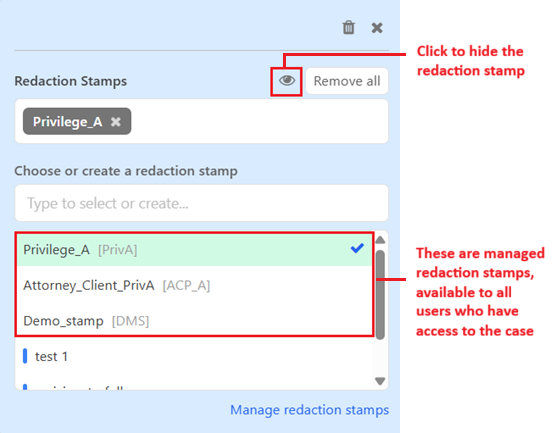
- If you want to hide the redaction stamp, click on the eye icon on the redaction stamp pop-up box
- You can add multiple redaction stamps to a redaction; just select from the list or add a one-off stamp and close the redaction stamp pop-up when you are done.
- Learn more about creating and maintaining redaction stamps
Adding a one-off / on-the-fly redaction stamp
Step 1. Open the document you are reviewing in the "New document viewer" layout
Step 2. Click on the 'Draw' redaction icon in the document viewer toolbar to add redactions
Step 3. Draw the redaction box over the text you want to redact
Step 4. Click on the redaction box to view the "Redaction Stamp" pop-up box
Step 5. Enter a name for the on-the-fly redaction stamp
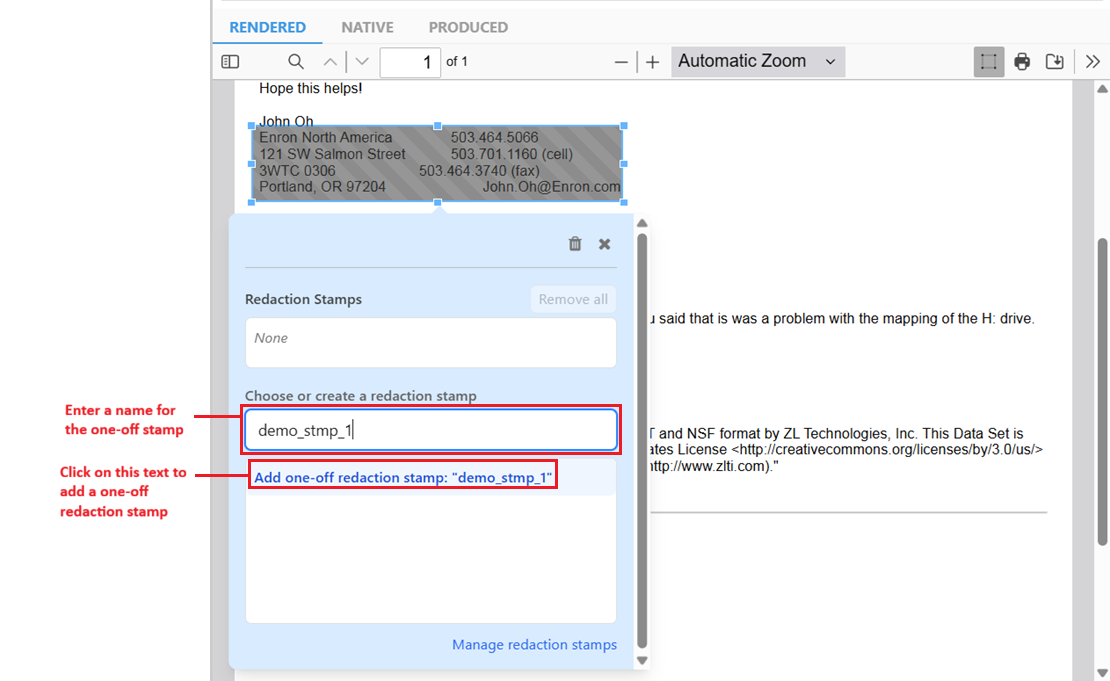
Step 6. Click on the 'Add one-off redaction stamp:' text that appears
Step 7. Close the redaction stamp pop-up box by clicking on the 'x' in the top-right corner. This will save the redaction stamp to the redaction.
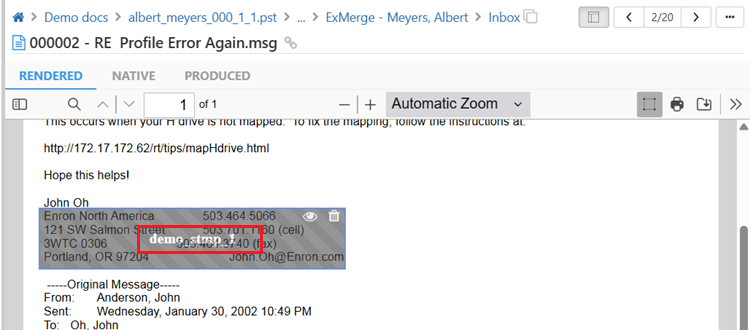
Note: Once you create a one-off / on-the-fly redaction stamp for a case, it will be available for you to add to any document in the case. However, it will only be available to the user who created it, not to all users who are shared on the case.
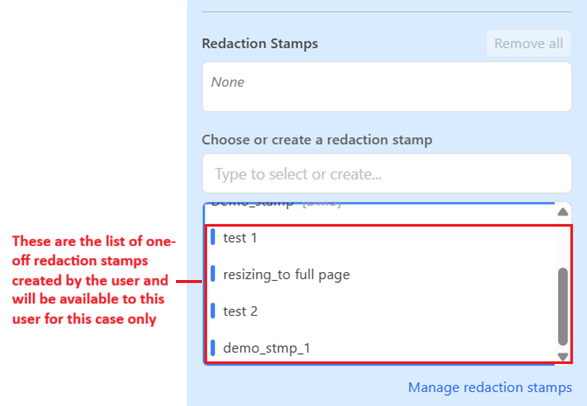
Adding a redaction stamp to an existing redaction
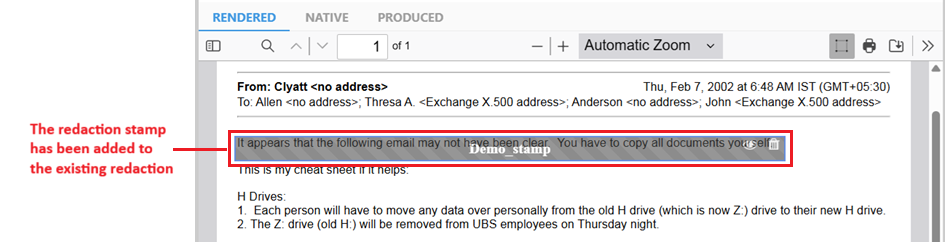
The GoldFynch app lets you add redaction stamps to already existing redactions in your case. You can also redact information and add the stamp at a later point in time.
Step 1. Open the document you want to add redaction stamps to existing redactions in the "New document viewer" layout
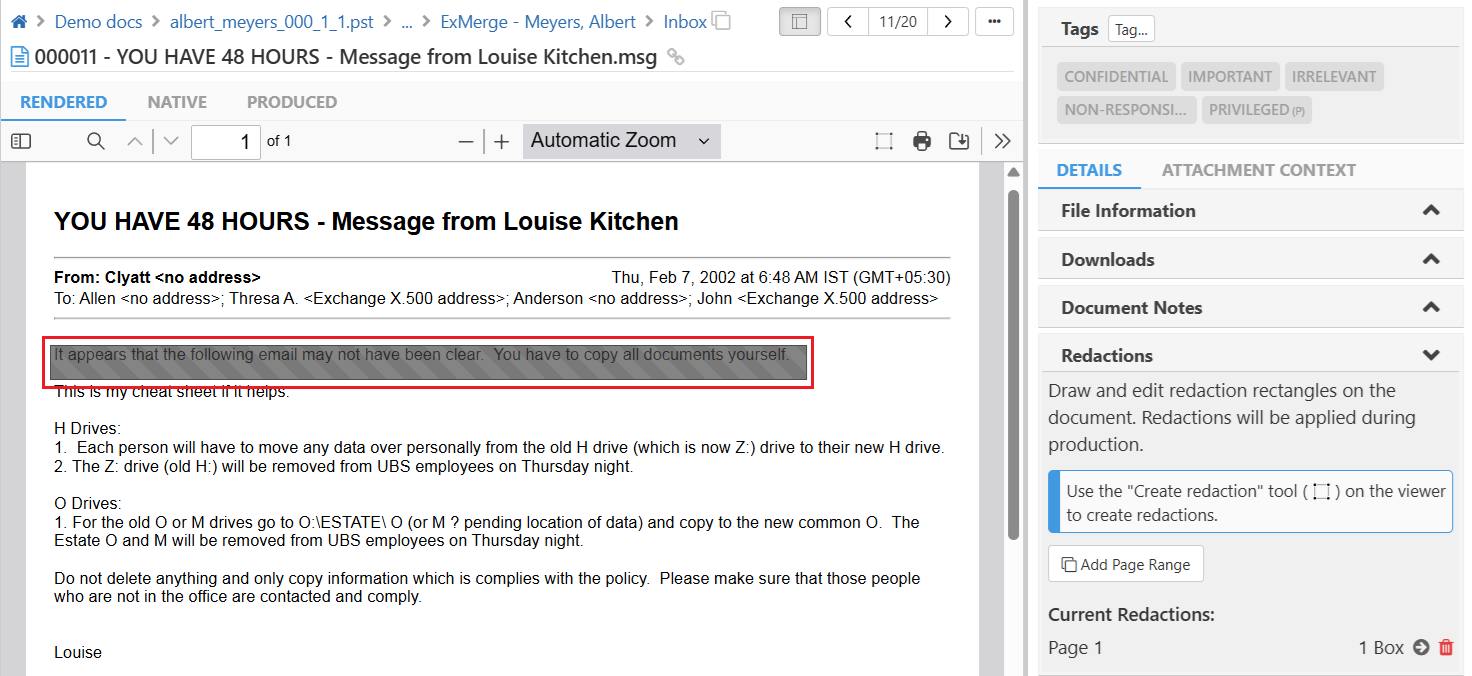
Step 2. Click on the 'Draw' redaction icon in the document viewer toolbar to enable editing on existing redactions
Step 3. Scroll to the redaction to which you want to add the redaction stamp and click on it to view the redaction stamp pop-up window
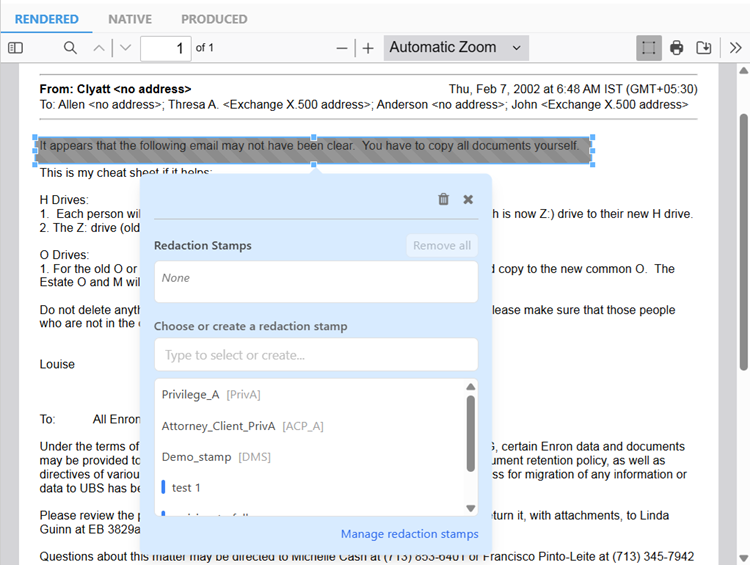
Step 4. Click to choose a redaction stamp from the list or add a one-off redaction stamp
Step 5. Close the redaction stamp pop-up window to save it
Updating a redaction stamp associated with a redaction
You can also update the redaction stamps to other values during your review process or later down the line. To do so:
Step 1. Open the document you want to update the redaction stamps in
Step 2. Click on the 'Draw' redaction icon in the document viewer toolbar to enable editing on existing redactions
Step 3. Scroll to the redaction to which you want to update the redaction stamp and click on it to view the redaction stamp pop-up window
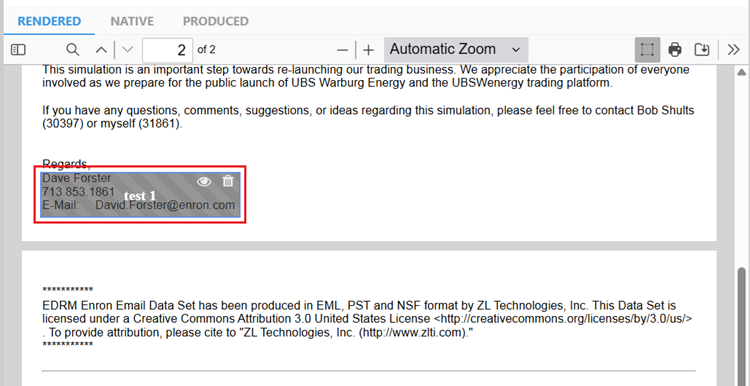
Step 4. Click on the 'x' against the redaction stamp you want to update to remove it
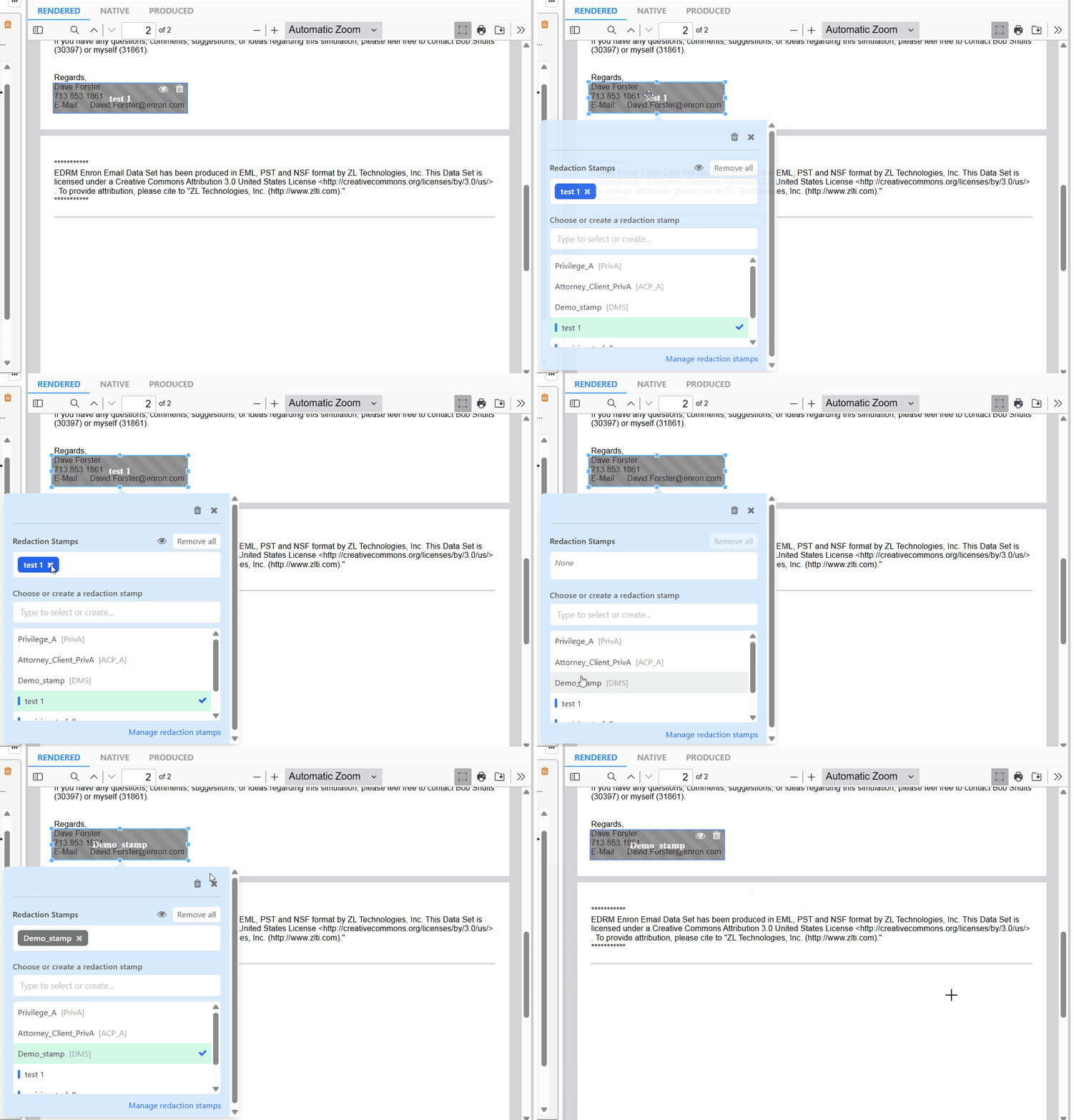
Step 5. Click to choose a redaction stamp from the list
Step 6. Close the redaction stamp pop-up window to save the changes
Deleting a redaction stamp associated with a redaction
Step 1. Open the document you want to delete the redaction stamp from
Step 2. Click on the 'Draw' redaction icon in the document viewer toolbar to enable editing on existing redactions
Step 3. Scroll to the redaction from which you want to delete the redaction stamp and click on it to view the redaction stamp pop-up window
Step 4. Click on the 'x' against the redaction stamp you want to delete
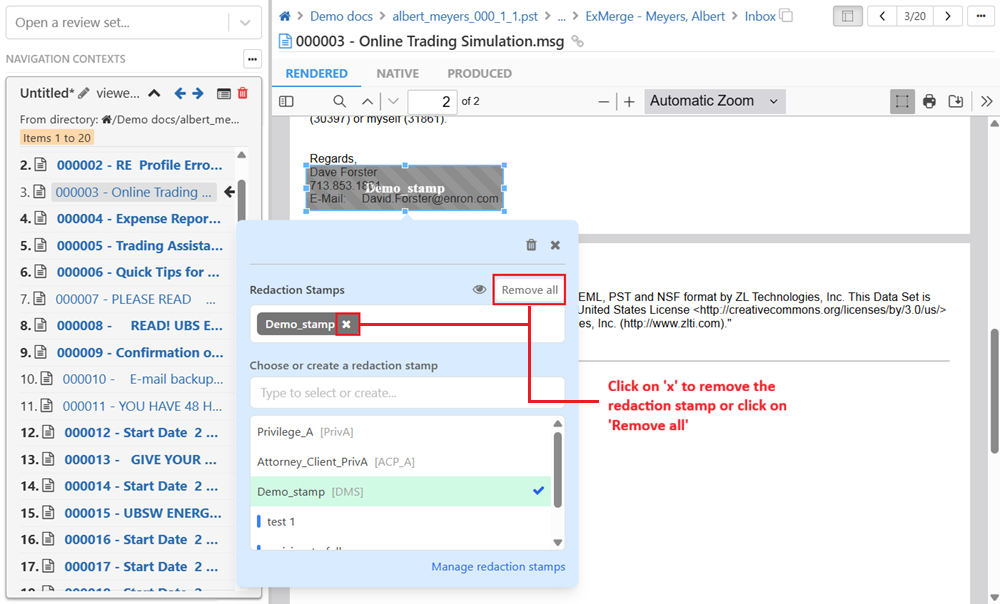
Note: If there are two or more redaction stamps, clicking on 'Remove all' will delete all of them from the redaction.
Step 5. Close the redaction stamp pop-up window to save the changes