
GoldFynch and other eDiscovery software expect the documents coming into the system to already be unitized (split into logical, individual documents/files). When you receive a bulk PDF production as a single large file, you will usually want to break it into its component documents before loading it into your case.
If the bulk PDF already contains top-level bookmarks marking the start of each separate document, Adobe Acrobat provides a convenient way to split the file along those bookmarks.
Note:
- Splitting of PDFs is done outside of GoldFynch in Adobe Acrobat. Once the file has been split, you can load the resulting individual PDFs back into your case.
- Adding bookmarks and splitting a PDF can only be done with a subscription to Acrobat Reader and cannot be done on the free version
Viewing existing bookmarks and adding new bookmarks to your PDF
- Click on the 'Bookmarks' icon on the navigation pane to view the existing bookmarks in your PDF
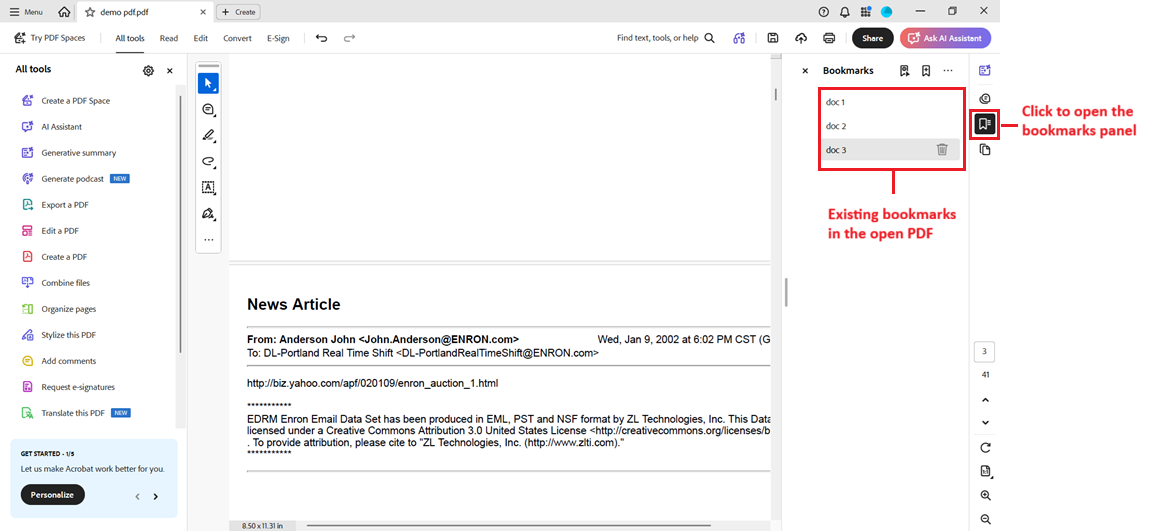
- If you still need to add bookmarks, place your cursor on each page where you want the file to break and press Ctrl + B (Windows) or Cmd + B (Mac) to create one, or click the 'Add a new bookmark' icon at the top of the bookmark panel
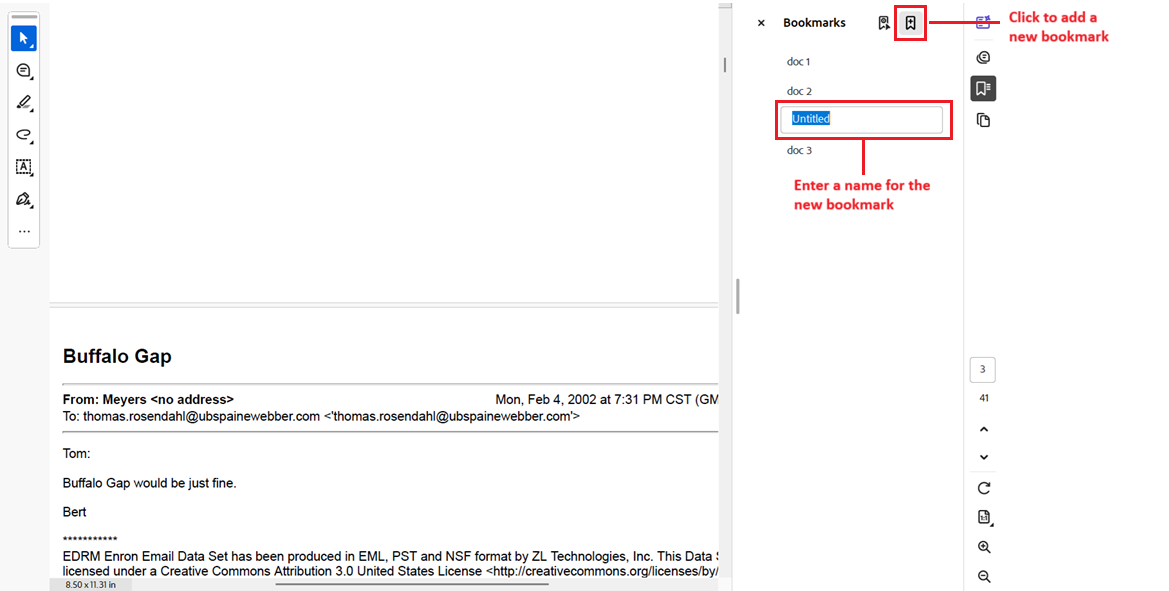
- Enter a name for the bookmark
Splitting a bulk PDF
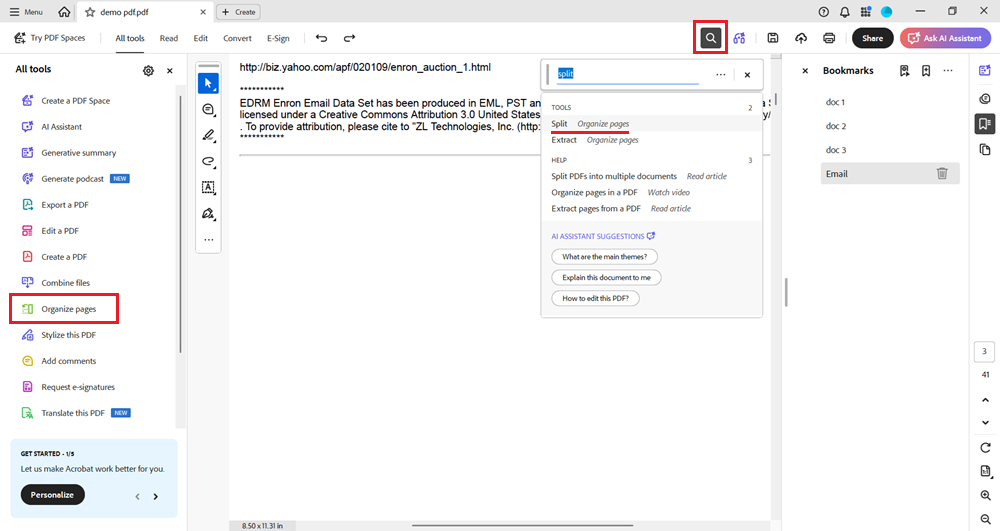
- Select the 'Organize Pages' option from the tools menu, or type 'Split' in the search bar and select 'Organize pages' from the tool options listing
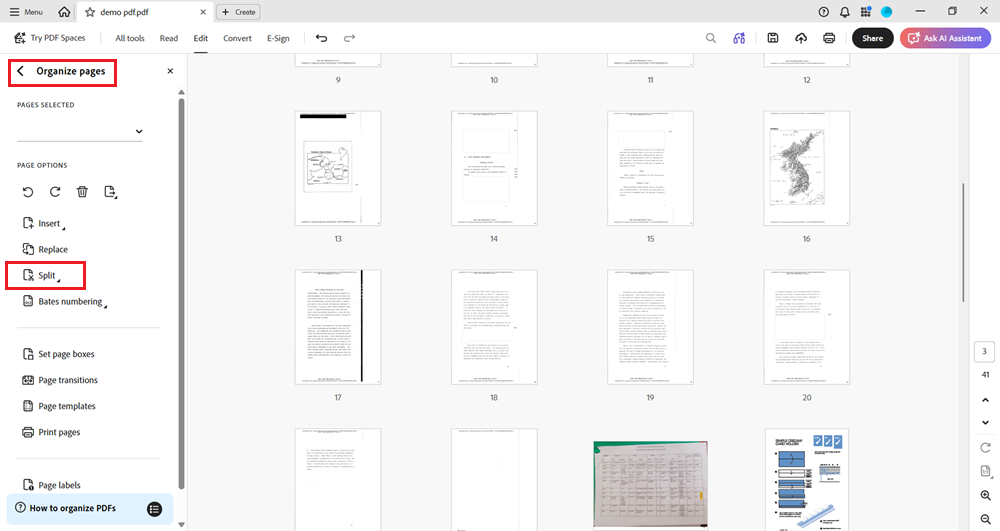
- Click on 'Split' in the Organize Pages toolbar
- Choose 'Top-level bookmarks' from the 'Split by' dropdown
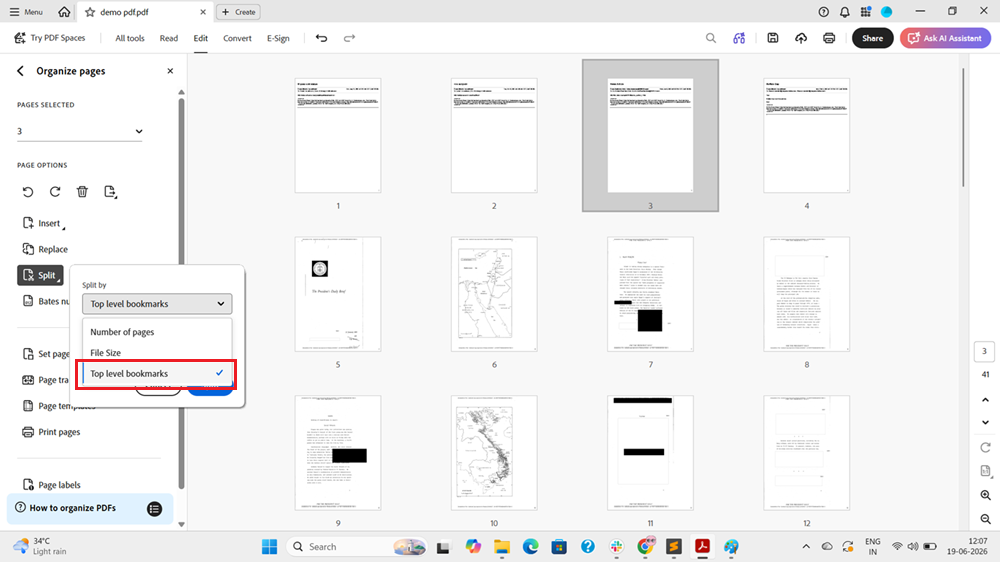
- Click on 'Split' in the Split by pop-up to run the split command.
A confirmation dialog appears once the process is complete. Acrobat creates one PDF for each top-level bookmark.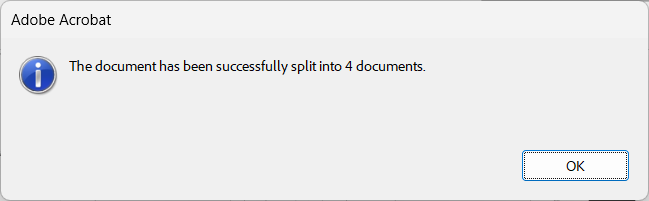
That’s it. Instead of struggling through hundreds of pages to find one section, you now have clean, individually split files. Upload these separated PDFs back into GoldFynch, and they will be treated as distinct documents in your case.
Note:
- The split is performed in Adobe Acrobat, not in GoldFynch. Once Acrobat has produced the individual files, load them back into your case as you would any other documents.
- If splitting the file isn’t feasible, GoldFynch’s document annotations feature can help you mark and jump to important pages within a single large PDF instead.
Related Articles